PezAccounting software comes with the flexible payroll features which makes it easy to print paychecks, pay employees and file tax reports. Here is the step by step guide to create and print a paycheck by salary or by hourly rate.
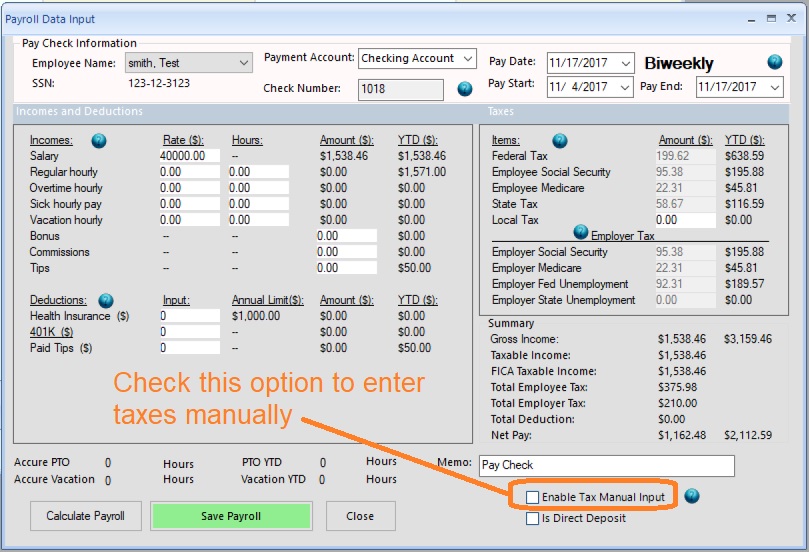
On new check screen: - Select this employee from list - Specify Pay Date, Pay Start Date and Pay End Date. - Review the information on screen - Save this new check. - Click the CLOSE button to close this screen for other operations (such as adding check for another employee or printing checks)
(Click image to enlarge)
1.2 Add a paycheck by hourly rate
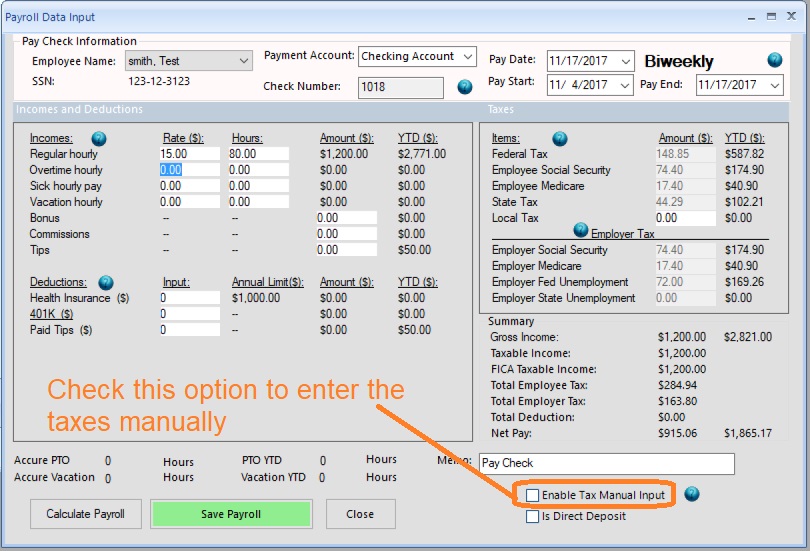
On new check screen: - Select this employee from list - Specify Pay Date, Pay Start Date and Pay End Date. - Enter hours - Review the information on screen - Save this new check. - Click the CLOSE button to close this screen for other operations (such as adding check for another employee or printing checks)
(Click image to enlarge)
2. Print Paychecks
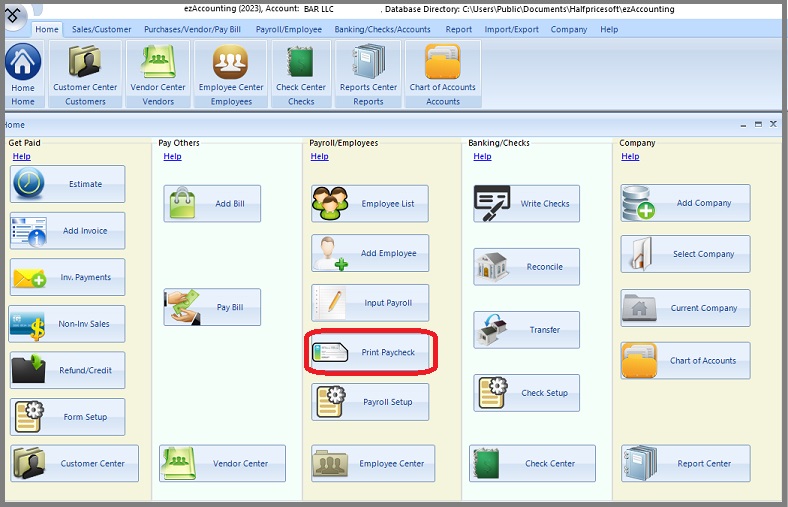
2.1 Click "Print Paychecks" button to view paycheck list.
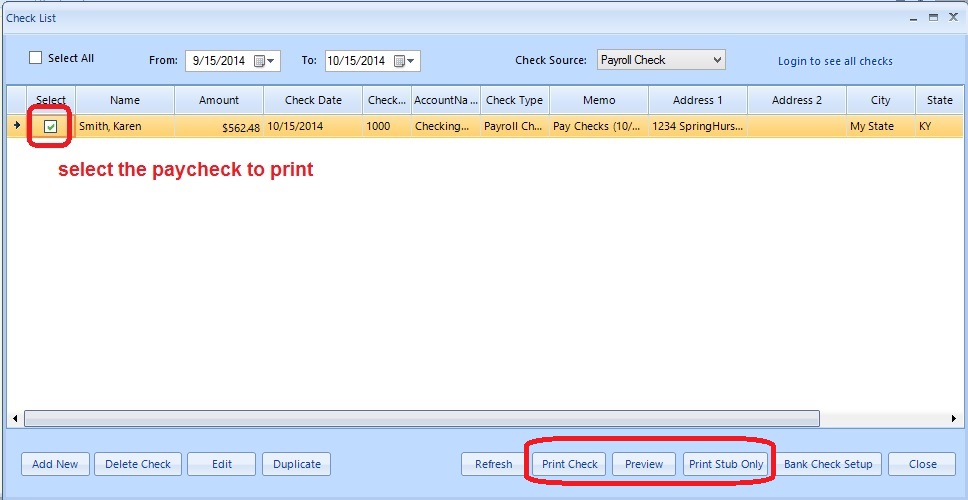
2.2 Select paycheck(s) from list and print
- Click the "Print" button to print paychecks with stubs. - Click the "Preview" button to prevew. - Click the "Print stub only" button to print stubs only.
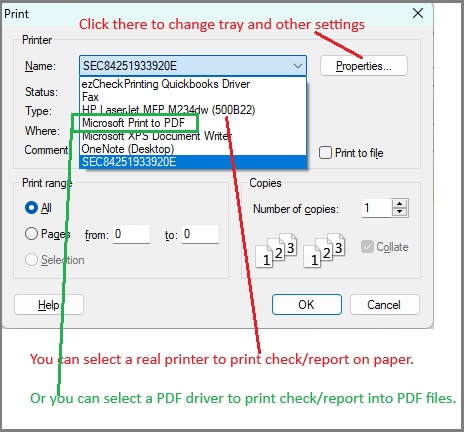
2.3 Select a printer
Note: If you want to print check or stub into PDF file, you can select "Micrsoft Print to PDF" or another PDF printer.
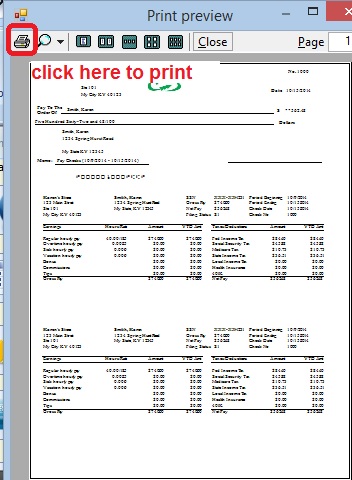
2.4 Preview paychecks and click the "Printer" icon to print checks on paper
From $199 (Regular $219)
Desktop Accounting & Payroll Solution
ezAccounting software is the right in house accounting solution for small businesses needing to document and report on incoming and outgoing cash flow including sales, receipts, payments and purchases. It also supports payroll processing and tax form printing.
Try the ezAccounting free demo - no credit card or obligation required.