Business Check Printing Software: No Data Error
| Error description | Solution |
| I print a blank check with company name and bank information only. There is no payee, amount and other data there. | You might use a wrong feature. View Solution #1 |
| I can see the correct check on print preview screen. But when I print on paper, it is a blank paper. | The printer driver may not be compatible with your system after Windows automatic updates. You can download a new printer driver from your printer vendor site to solve this issue. |
Solution 1: Print click the correct button to print check
Reason: You might print a blank check by mistake. The blank check feature allows you to print a blank check to fill in manually later. To print check with data to pay bill, please follow the step below.
Step 1: Add a new check by clicking the "New" button above the check listYou can skip this step if there are checks in list.
Step 2: Print check(s) by selecting the check(s) from check list, then click the "Print" button above the check list.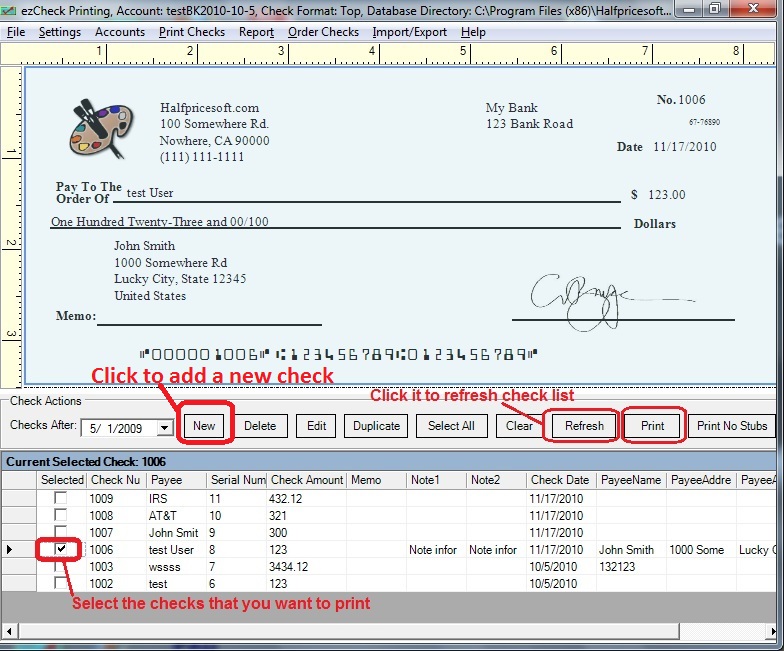 Step 3: Click the printer icon on preview screen to print check on paper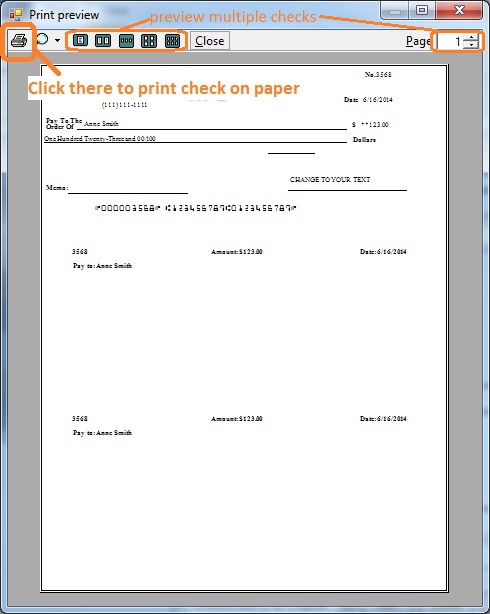
 | Design and Print Professional Checks Yourself- Print checks on blank stock with logo and signature
- Fill in data on pre-printed checks
- Print blank checks to fill in later
- QB virtual printer for QuickBooks/Quicken(for Windows)
- Unlimited accounts and checks for Windows and Mac.
Try ezCheckPrinting free demo version with no obligation and no credit card needed.
|
Related Links:
How to print paychecks on balnk stockHow to print personal check on blank stockHow to Print QuickBooks Check on Blank stockHow to Print pre-printed check with MICR Encoding to fill in manuallyHow to Print check with logoHow to print check draft to collect payment online
