Once you have installed ezCheckPrinting, a desktop shortcut will be created. You can click it to run ezCheckPrinting.
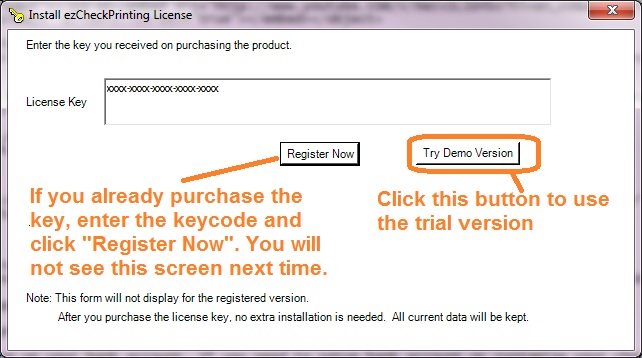
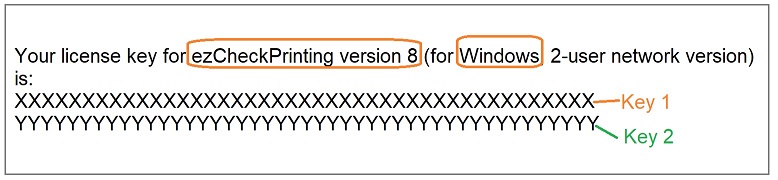
Step 2: Register license: copy and paste the key code including dashes ("-")
The license key code is case sensitive!
- You will see the key code pop up message when you start ezCheckPrinting software if you have not registered the key code.
- You can also click ezCheckPrinting top menu "help" to register license.
How to copy and paste Double-click on the text you want to copy, or highlight it. With the text highlighted, press Ctrl + C to copy. Move your cursor to the appropriate location and press Ctrl + V to paste
If you have not purchased the license, you can purchase it from our site and get it instantly by email. Please check both inbox and JUNK folder. If you cannot receive the license message in 10 minutes, please feel free to contact us.
Still need assistance?
Please contact us at [email protected] and add the following information to your message. We are glad to assist you as soon as possible
1. The email you used with your order (If you ordered this software from Amazon, please let us know the Amazon order ID) 2. The license key code you received 3. The software name and version number you see on screen.