ezDocuReader Software: Read Data
Step by step guide about how to read data from the source files (such as W2 forms, 1095 forms, invoices, receipts or others) and save data into .csv files.
<<
Previous step: Create a TemplateStep 1: Load data file
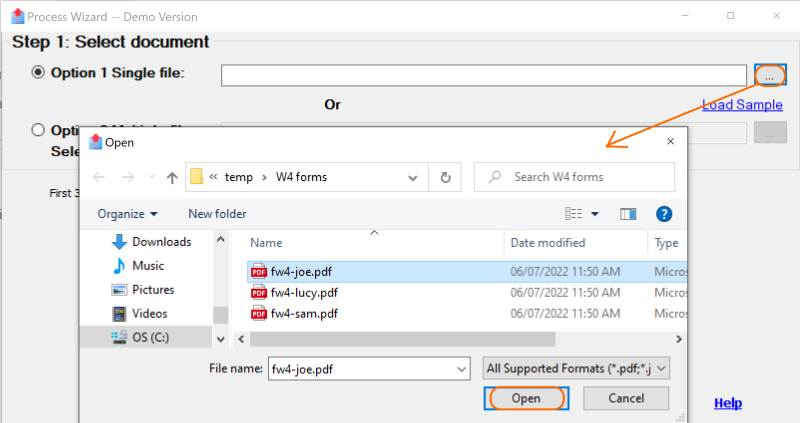
Option 1: Extract data from one file (ie: a file with only one receipt, or a file with hundreds of W2 forms.)
1.1 Click the button behind file path field to select the data file
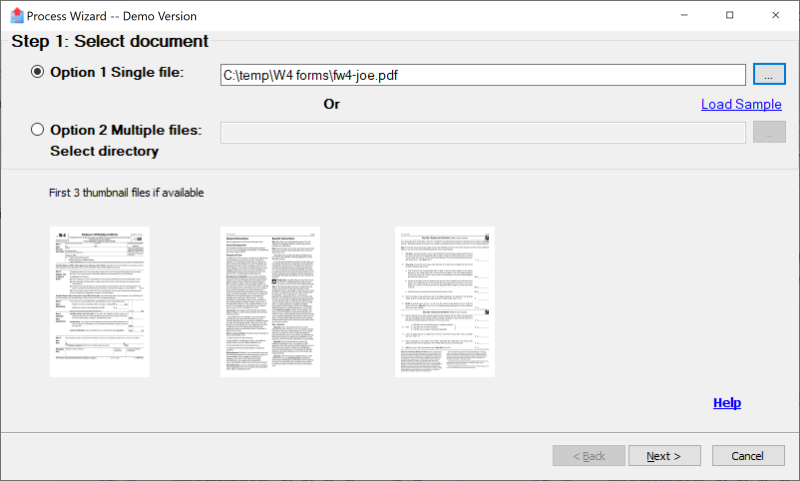
1.2 You will see the thumbnails of the first 3 pages if available. (For example: if your data file just includes one page, you will see one page on screen.)
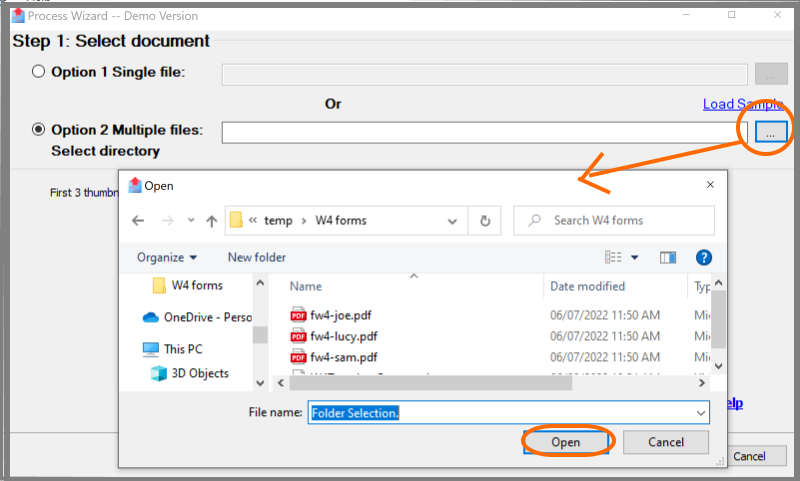
Option 2: Extract data from multiple files in the same folder
2.1 Click the button behind file path field to select the data folder path
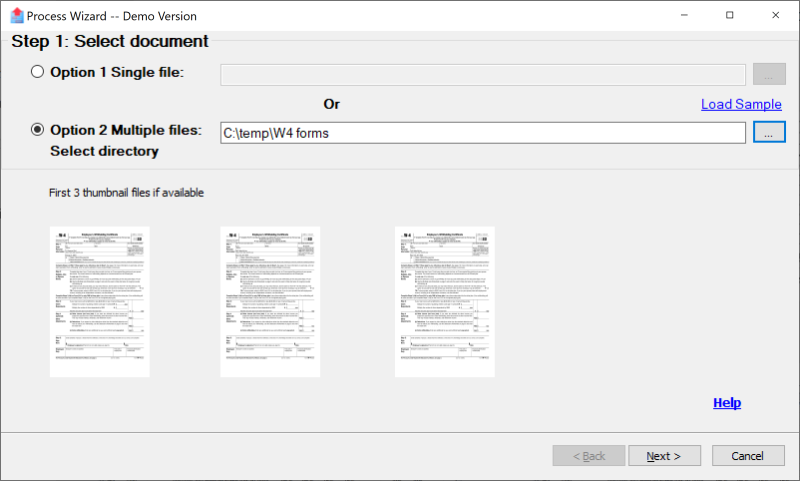
2.2 You will see the thumbnails of the first page of the first 3 files if available.
Step 2: Select a template
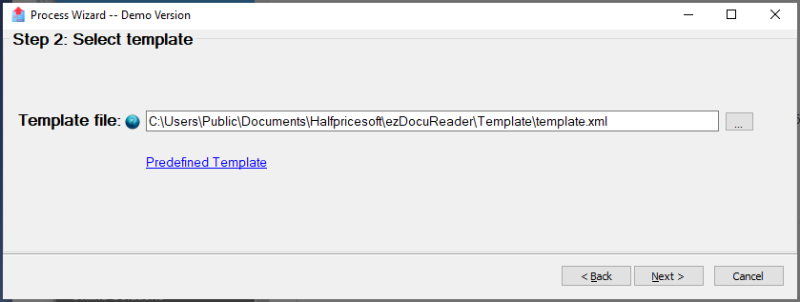
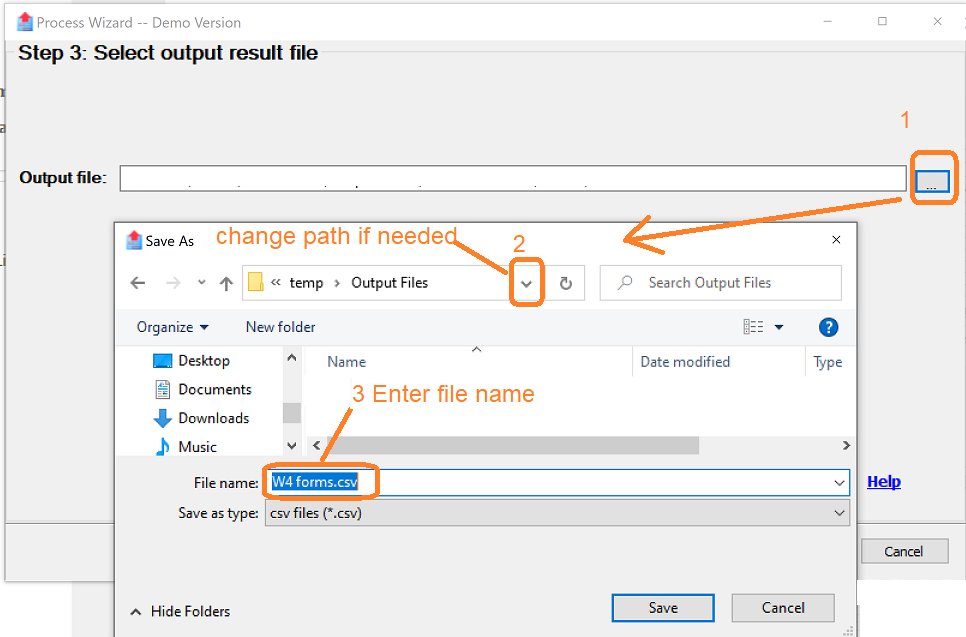
Step 3: Specify the output file
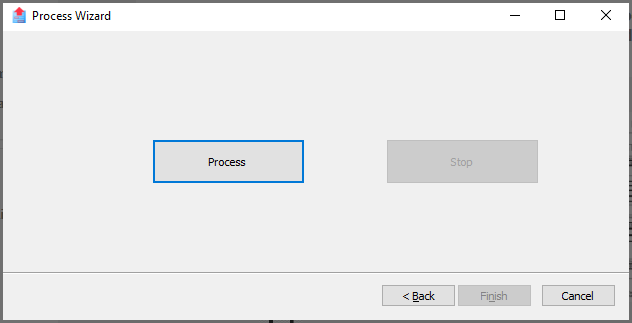
Step 4: Extract data to a .csv file
4.1 Click the "Process" button to extract data
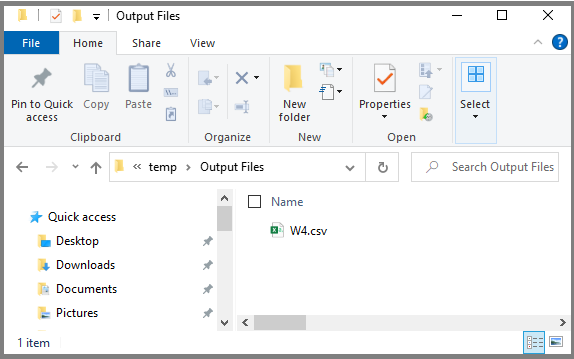
4.2 After the process completes, click "Open result folder" to view the output file folder
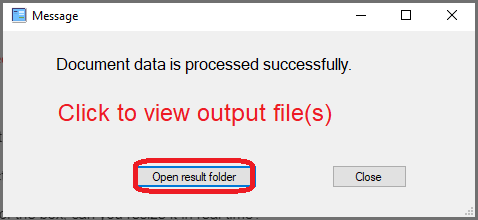
4.3 Double click the file to open it with Excel application
4.4 You will see the data in the file

(Click to view larger image)If you are using the Trial version, only the first three fields will be extracted

(Click to view larger image)<<
Previous step: Create a Template
Related Links

