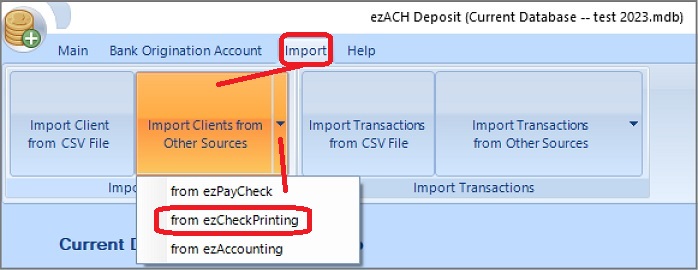
Here are the step by step guide on how to import payee data from ezCheckPrinting software.
How can I know which ezCheckPrinting account has my data?
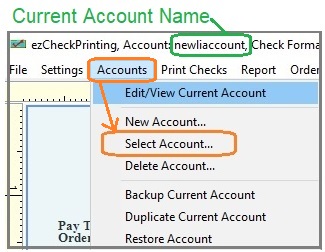
You can start ezCheckPrinting and view the current account database file name from the top menu. The file name is behind "ezCheckPrinting, Account:". (Note: If you have multiple accounts, you can click the top menu "Accounts" then "Select Account" to change the current account.)
Step 1: Import payee data from ezCheckPrinting software
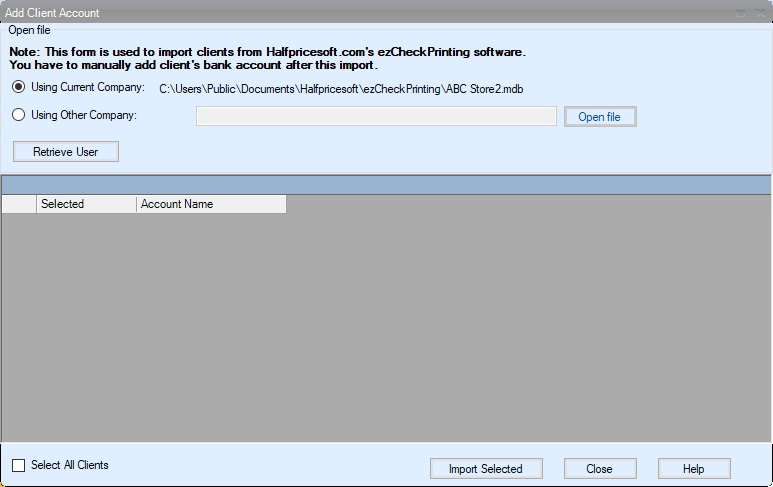
Click the Open File button to choose the ezCheckPrinting software account.
Click the IMPORT button to import data.
Step 2: Edit client data and add bank account information
There is no payee account information saved inside ezCheckPrinting software. After you import employees, you still need to edit client information and add bank account information there.
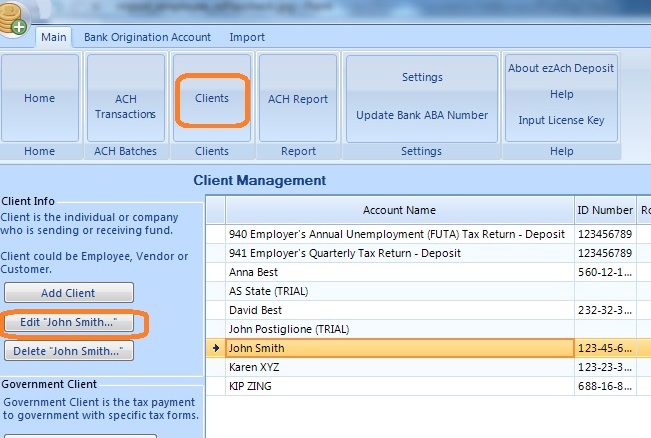
2.1 Click ezACH top menu "Main", then "Clients" to view client list
2.2 Select a client from list, add click "Edit" button.br>br>
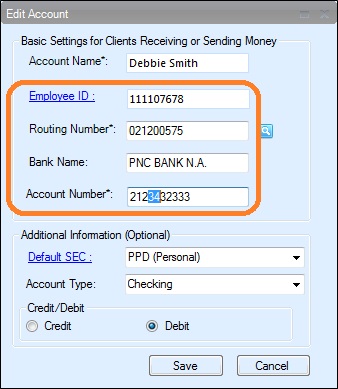
2.3 Add client bank account information
If you cannot find the bank information from the list, you can add it manually.