Halfpricesoft Halfpricesoft
 

Direct Deposit: How to Import Employee Data from ezAccounting Software


with ezACH deposit software, you can
  • Add client(s) manually
  • Add client(s) by importing from .cvs file
  • Add client(s) by importing from ezPaycheck
  • Add client(s) by importing from ezCheckPrinting
  • Add client(s) by importing from ezAccounting

  • Here are the step by step guide on how to import payee data from ezAccounting software.

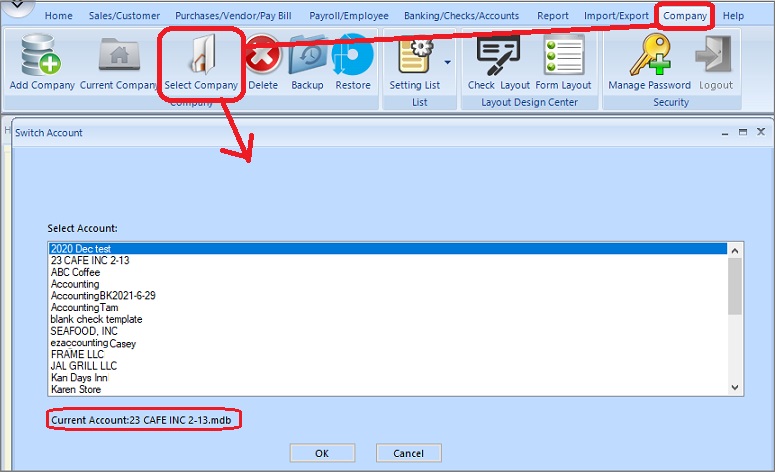
    How can I know which ezAccounting account has my data?

    You can start ezAccounting, click the top menu "Company" then "Select Company" to see the current company account.


    Step 1: Import employees from ezAccounting software

  • Start ezACH Software

  • If you have not installed ezACH deposit software, you can download and try it free at
    https://www.halfpricesoft.com/NACHA-ACH-direct-deposit-download.asp

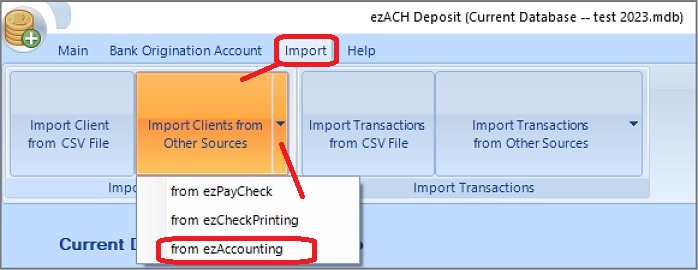
  • Click the top menu "Import" to import data.


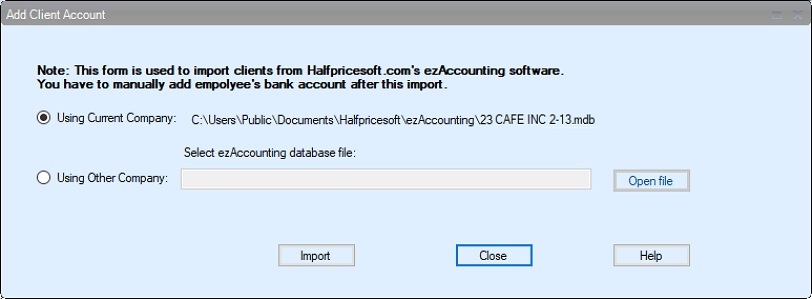
  • Click the Open File button to choose the ezAccounting software account.

  • Click the IMPORT button to import data.


    Step 2: Edit client data and add bank account information

    There is no payee account information saved inside ezAccounting software. After you import employees, you still need to edit client information and add bank account information there.

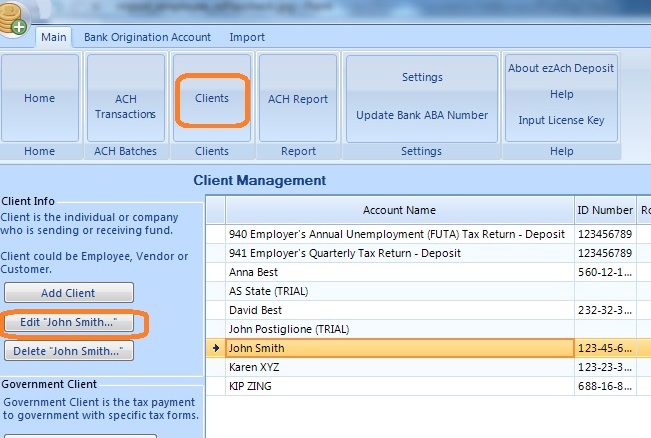
  • 2.1 Click ezACH top menu "Main", then "Clients" to view client list

  • 2.2 Select one employee from list, add click "Edit" button.br>br>

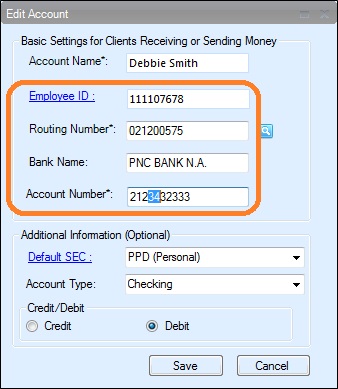
  • 2.3 Add employee bank account information

    If you cannot find the bank information from the list, you can add it manually.


    Now you are ready to add transactions

    You can
    - enter the transactions manually

    - or import the payroll data from ezPaycheck quickly

    If you have any questions, you can check Quick Start Guide, FAQs page and contact us.