ezCheckPrinting for Mac: License Issue and Solution
Please click here to view the solution for Windows version 
Who can use this guide
This troubleshooting guide is designed to resolve issues if you are experiencing either of the following:
Trial Watermark: You see "TRIAL" watermark when printing checks.License Key Error: You receive a license validation or registration error message when attempting to activate the software.Step 1: Find the software name and version number
Click ezCheckPrinting top menu "help", then sub menu "About ezCheckPrinting" to view the software name and version.
Note: The licenses for ezCheckPrinting version 5 and version 6 are different. ezCheckPrinting version 6 was released on Aug 9, 2019 and you can make in-app purchase from Apple Store only.
Step 2: Solution
Step 2.1 ezCheckPrinting Version 6 Solution
Step 2.1.1
Please review your Apple Store orders to make sure the order of ezCheckPrinting Mac version 6 completed.
Step 2.1.2 If you have multiple Apple Accounts, please make sure you install ezCheckprinting with the
same Apple ID that was used for the original purchase.
Step 2.1.3 If your order completed, please click the "Restore Purchases" button to retrieve your license from Apple Store.
If you cannot retrieve your order, restart your Mac computer and try one more time.
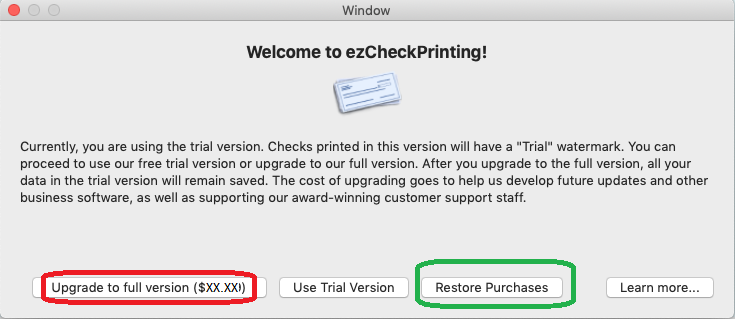
Step 2.1.4 Contact Apple Store for the license issue.
We submitted ezCheckPrinting version 6 to Apple Store. The license is managed by the Apple Store, not by us.
Step 2.2 ezCheckPrinting Version 5 Solution
Please copy and paste ezCheckPrinting Version 5 keycode including dashes ("-") to license input screen.
Step 3: Need Further Assistance?
If you follow the guide and are still unable to restore your license, could you please answer a few quick questions so we can pinpoint the issue?
Q1. Order Visibility (Step 2.1.1):
Do you see your ezCheckPrinting purchase listed in the App Store purchase history on your current Mac?
Q2. Apple ID (Step 2.1.2):
Are you logged into the App Store on your Mac using the exact same Apple ID that was used to make the original purchase?
Q3. Error Messages (Step 2.1.3):
Did you encounter any error messages or unexpected prompts when clicking the "Restore Purchase" option?
Q4. macOS Version:
Which version of macOS is your Mac currently running? If you are unsure how to check, you can follow this quick guide:
https://www.halfpricesoft.com/mac-check-writer/macos_version/
 | Design and Print Professional Checks Yourself- Print checks on blank stock with logo and signature
- Fill in data on pre-printed checks
- Print blank checks to fill in later
- QB virtual printer for QuickBooks/Quicken(for Windows)
- Unlimited accounts and checks for Windows and Mac.
Try ezCheckPrinting free demo version with no obligation and no credit card needed.
|
Related Articles:

