ezPaycheck Payroll Software: Edit or Delete a Paycheck
#1 Edit the check number or memo field
1.1 Start ezPaycheck, select the check from check list and click the "View" button. 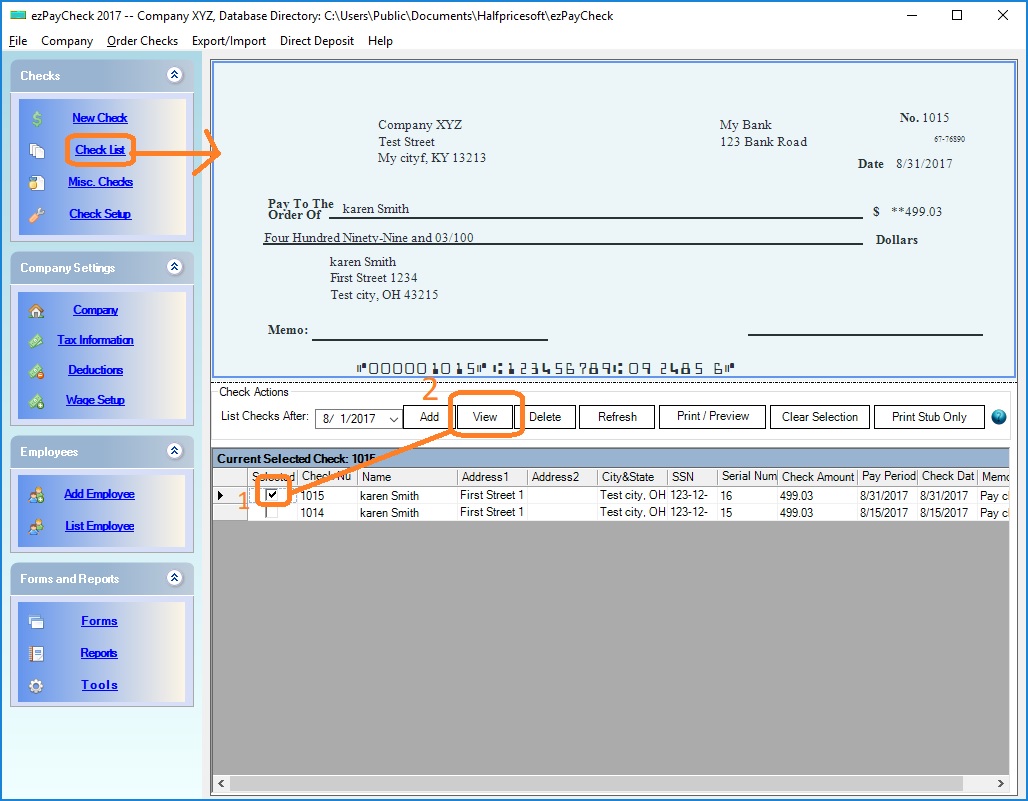 1.2 Edit the check number or memo field, and save.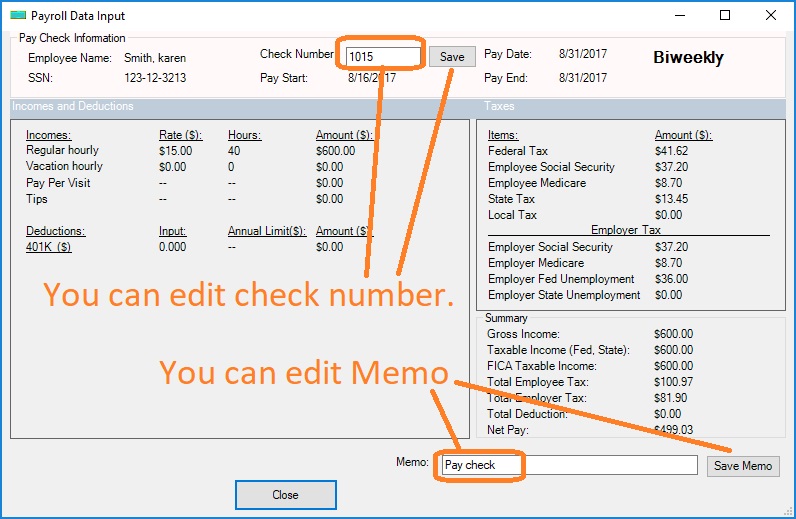
#2 Edit amount or date
Editing a paycheck may cause tax calculation problem. If you entered a wrong check, please delete the check and add it again.
2.1. As a precaution, please
backup data before any major change.
2.2. Delete the wrong check. Once the check is removed, you cannot undo it.
2.3. Edit the current check number(optional)
If you want to reuse the same check number, you can reset the current check number by clicking the left menu "checks->check setup". Then change the current check number
2.4.
Add a new check #3 Delete Paycheck(s)
3.1. As a precaution, please
backup data before any major change.
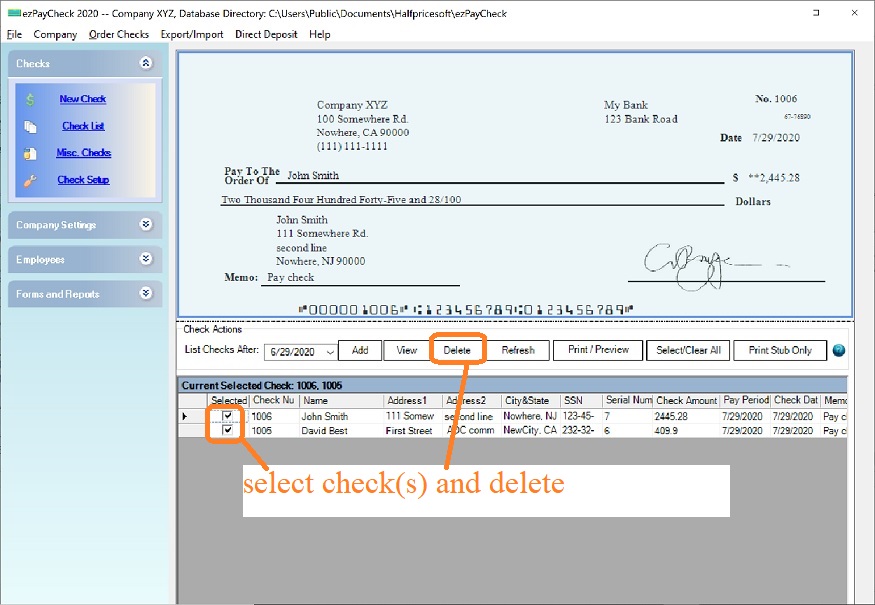
3.2 Select a paycheck (or multiple paychecks) from check list, and click the "Delete" button to remove check(s). Once the check is removed, you cannot undo it.
Related Links:
ezPaycheck Quick Start Guide How a add a new company account How to handle both employees and contractors How to handle restaurant tips How to add a custom deduction and withhold it from each paycheck automatically How to handle local taxes How to handle State Disability Insurance (SDI) How to print paycheck in different formats: check-on-top, check-in-middle, check-at-bottom or 3-per-page How to print paycheck on blank stock How to print paycheck on pre-printed checks How to print paycheck with company logo How to adjust check printing position Sample Paychecks Determine a Company's Name for e-Filing