How to Calculate Georgia Income Tax Withholdings
Paying employees accurately and on time is very important for any business. Usually you can calculate Georgia payroll income tax withholdings in the following ways.
Calculate Georgia it manually by using state tax tableUse payroll software to simplify the tax calculationsHire an accountant
Option 1: Calculate GA State Income Tax Manually
If you like to calcualte state tax withholdings manually, you can refer to the Georgia tax tables and step by step guide there.If you need to create the paychecks and paystubs by entering the federal and state tax amount, you can refer to this article How to Generate After the Fact Paychecks with StubsOption 2: Payroll Software Saves GA Businesses Time and Money by Calculating the Taxes Automatically
EzPaycheck Payroll software is a good choice for many small business employers. Once you set up company and employee, ezPaycheck will calculate Georgia income tax for you automatically. Here are the quick guide.

From $169 | ezPaycheck Makes Payroll An Easy, In-House Task!(For Windows and Mac)
- Trusted by Thousands for Two decades.
- Calculate Federal & State Taxes, Print Paychecks, Print W2, W3, 941, 943 and 940.
- User-friendly, Easy-to-use
- No monthly fee.
Act now: automate your small business payroll today.
Try it free for 30 days with no obligation. No credit card required.
|
Step 1: Download and install ezPaycheck payroll software
We have ezPaycheck 2008 to current available from our site. Please choose the right version to download. For example: If you need to calculate Year 2026 income tax, please download ezPaycheck 2026.
Step 2: Set up Company
Select the rigth Pay Period Start ezPaycheck application, click the left menu "Company Settings" then click the sub menu "Company" to open the company setup screen. Please make sure you select the correct Pay Period there. 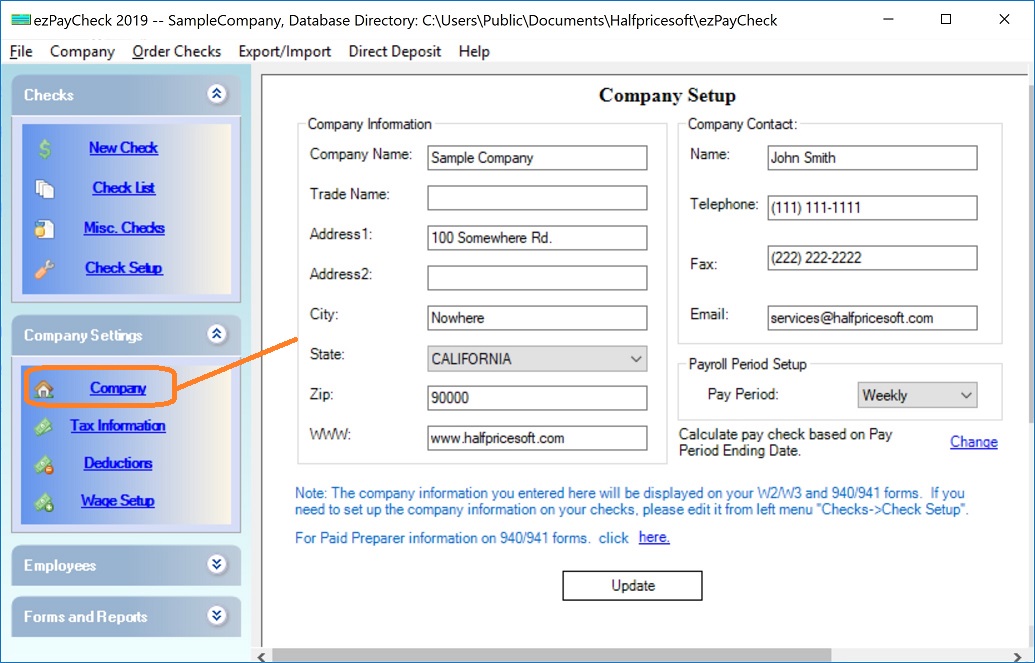
(Click image to enlarge)
Set up company tax information optionYou can click the left menu "Company Settings" then click the sub menu "Tax Information" to open the company tax setup screen
Step 3: Set up Employee Profile
Enter employee address correctlyStart ezPaycheck application, click the left menu "Employees" then click the sub menu "Add Employee" to add employee profile. EzPaycheck calculates state tax based on employee address.
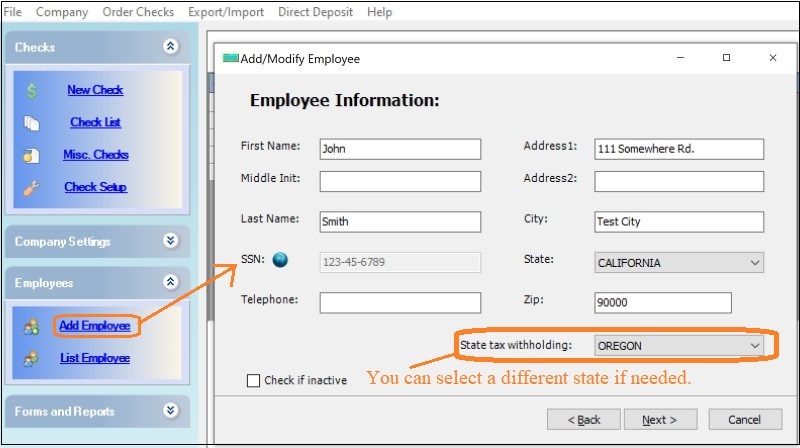 Enter the tax option for this employees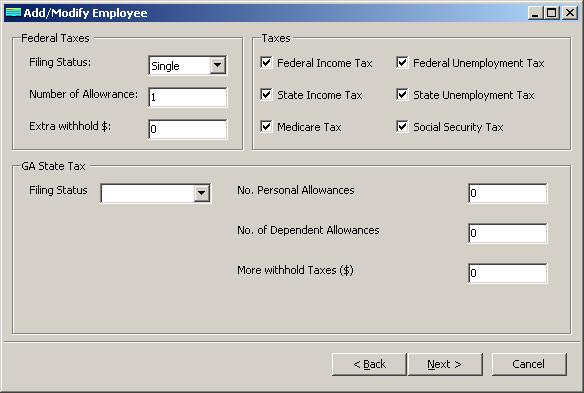
Step 4: Add and Print a check
You can click the "ADD" button above check list on the main screen to add a new check. Or you can click the ezPaycheck payroll software left menu "Checks" then click the sub menu "New Check" to open New Check screen.
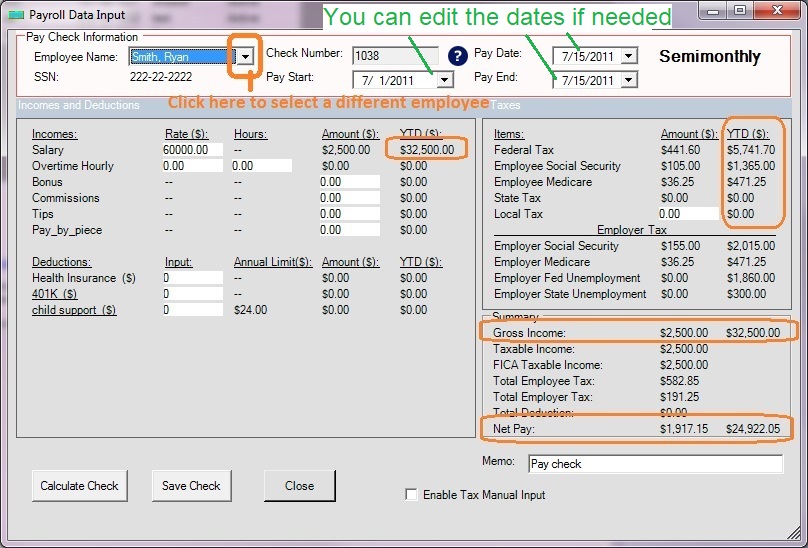
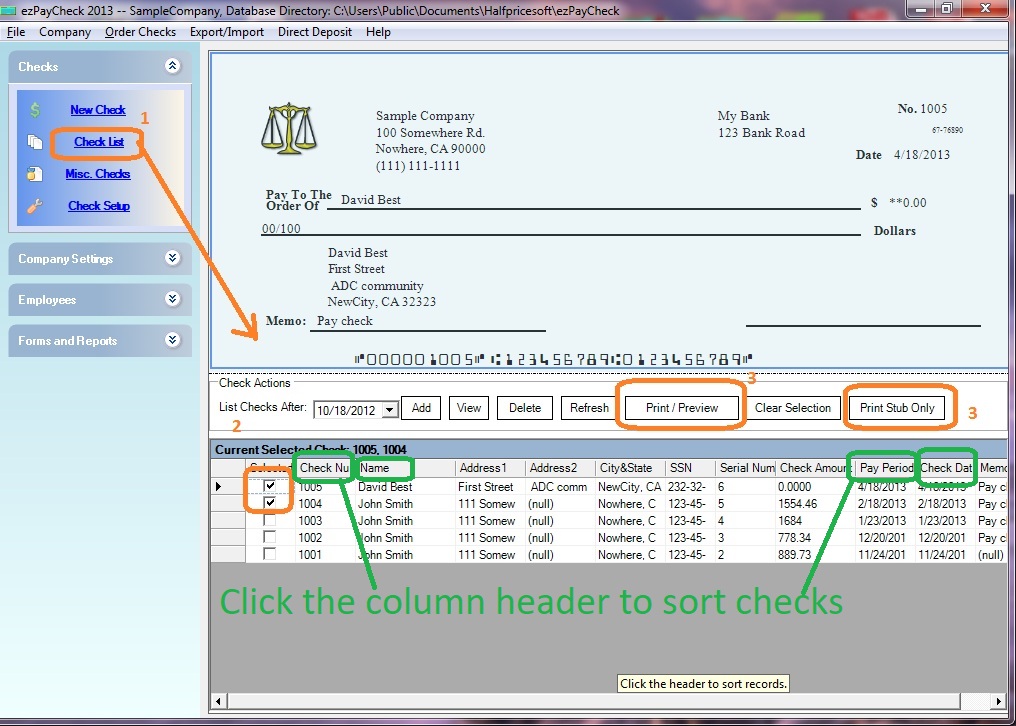
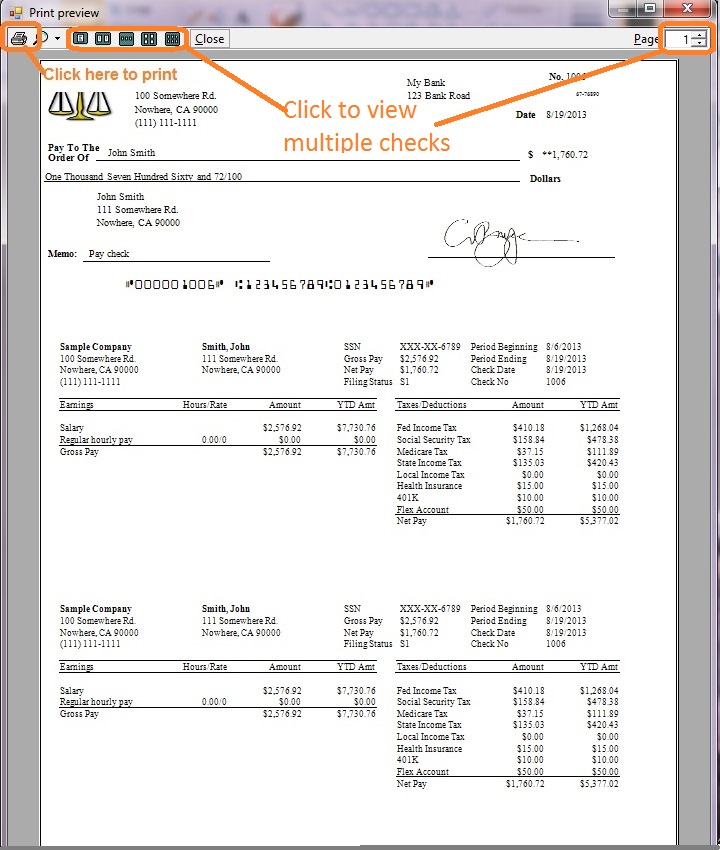
Print paychecksYou can select one or multiple paychecks from list and click the Print button to print paychecks together.
Related Topics
ezPaycheck Quick Start GuideHow a add a new company accountHow to handle both employees and contractorsHow to handle restaurant tipsHow to add a custom deduction and withhold it from each paycheck automaticallyHow to handle local taxesHow to handle State Disability Insurance (SDI)How to print paycheck in different formats: check-on-top, check-in-middle, check-at-bottom or 3-per-pageHow to print paycheck on blank stockHow to print paycheck on pre-printed checksHow to print paycheck with company logoHow to adjust check printing positionSample PaychecksDetermine a Company's Name for e-Filing
