HalfpricesoftHalfpricesoft


    ezCheckPersonal Software: How to Share data by using a Shared Folder

    With ezCheckPersonal software multiple-user version, customers can share the data over network easily. If you do not have a data server, you can follow this guide to share the data by using a shared folder.

    Step 1: Set up the first machine

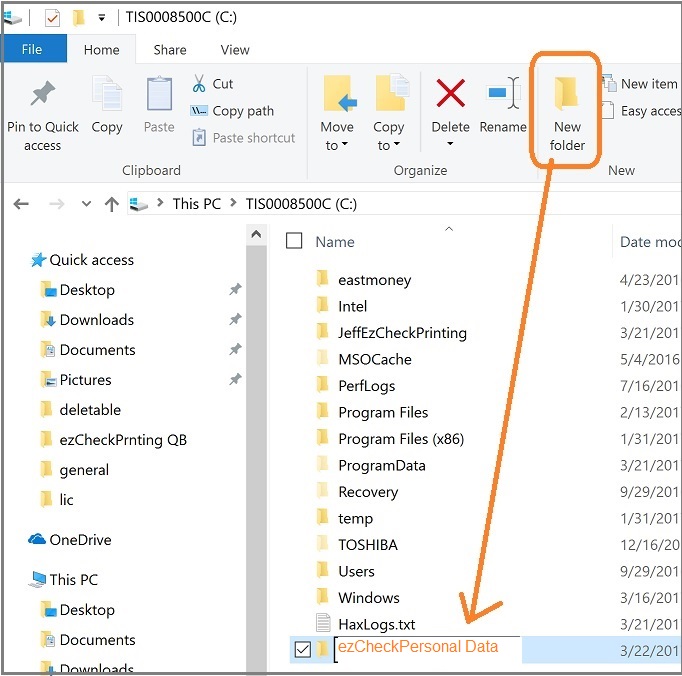
    1.1 Add a new folder first. It will be used as the shared data folder.

    add a folder

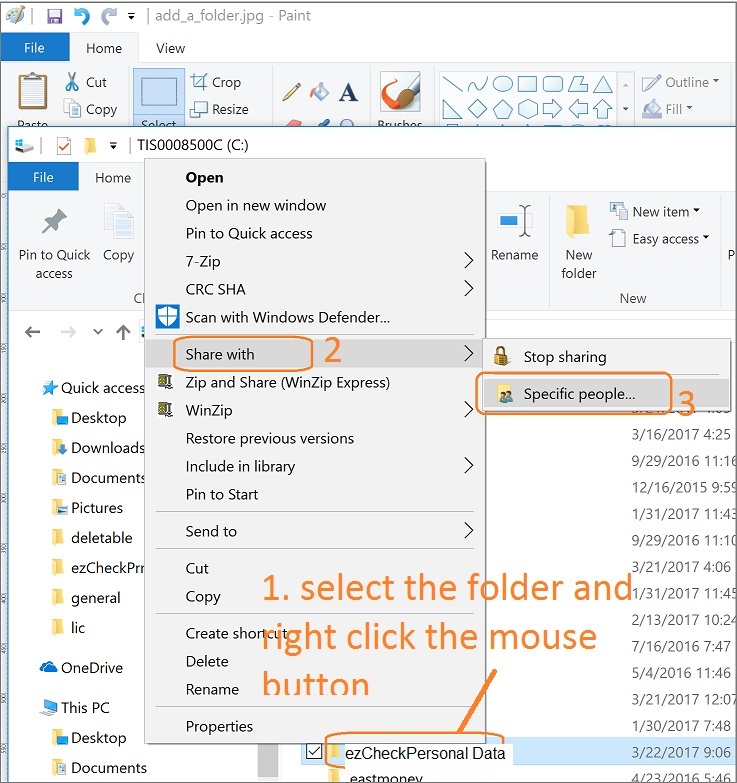
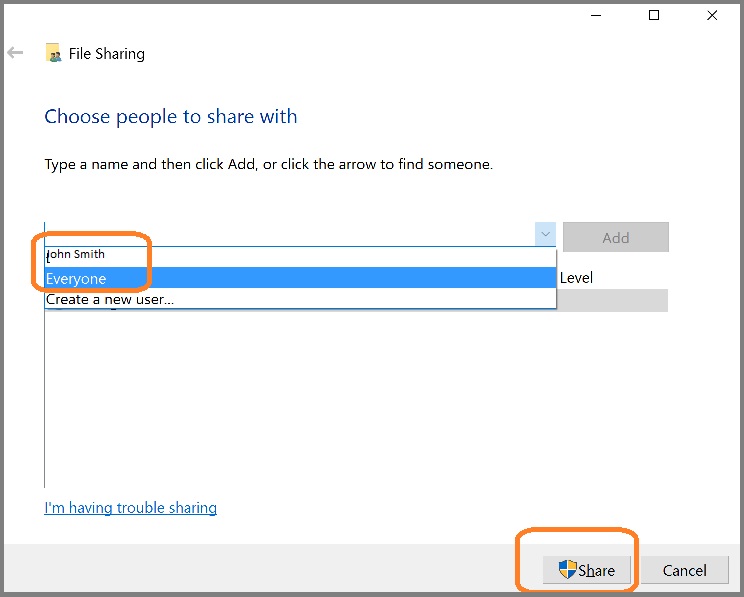
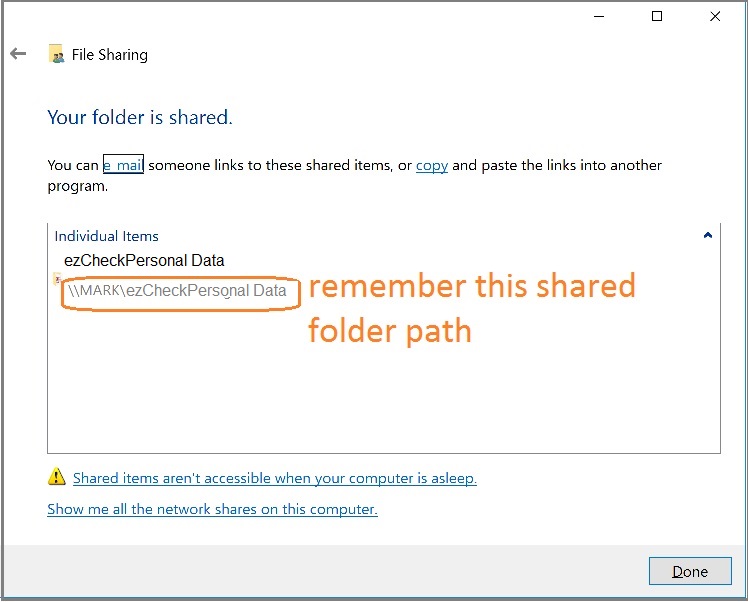
    1.2 Share the folder to others

    share a folder

    share a folder permission

    share a folder path

    1.3 Start ezCheckPersonal and copy data to this shared folder

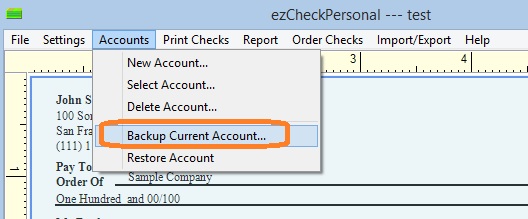
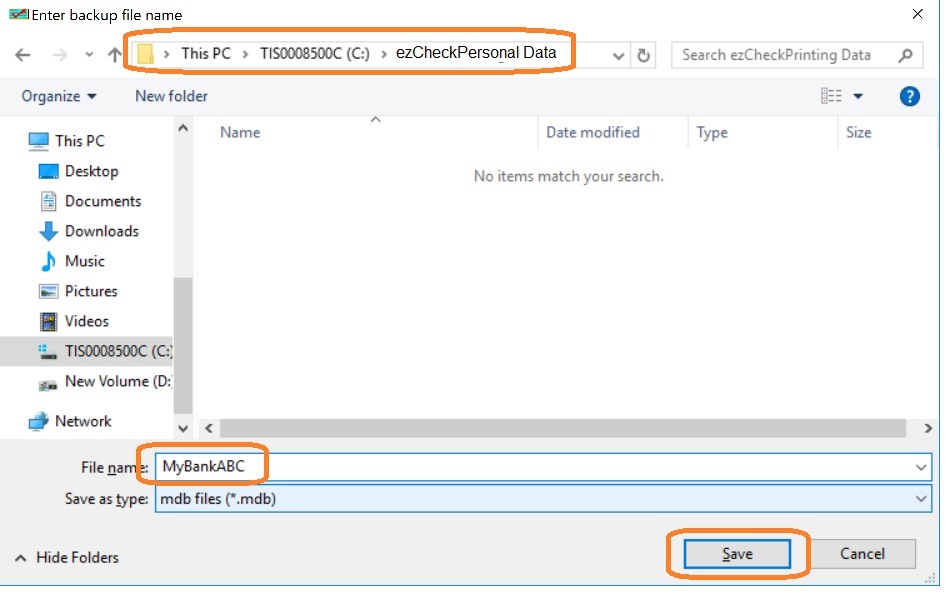
    Click ezCheckPrintng top menu "Accounts" then "Backup Current Account". Please enter a new account name with letters and number only. For example: "Bank ABC Shared" or "Company XYZ".

    duplicate current account


    save a new account

    1.4 Change the ezCheckPersonal database path to use the shared file

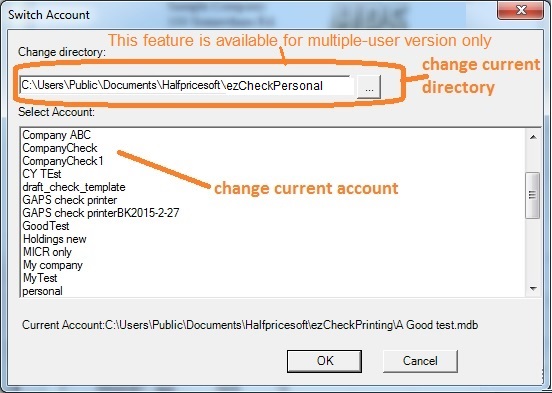
    Click ezCheckPersonal top menu "Accounts" then "Select Account".

    switch account

    Step 2: On the second machine

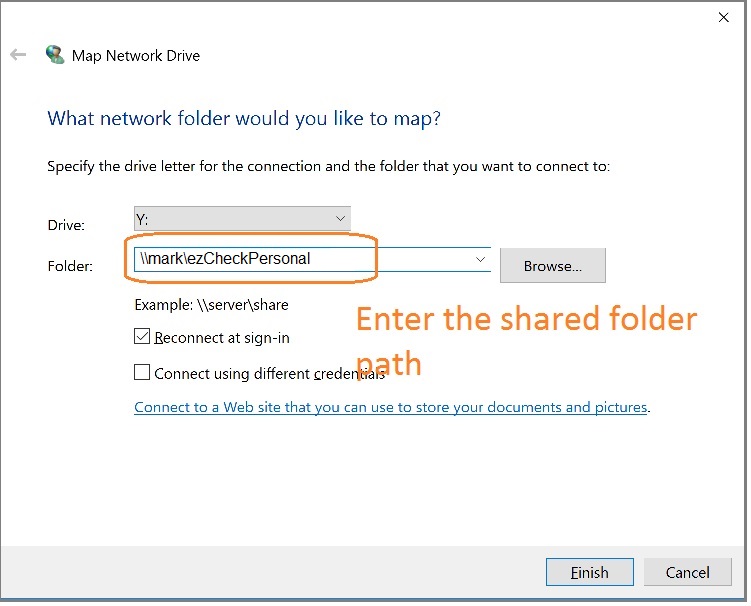
    2.1 Create a new map drive

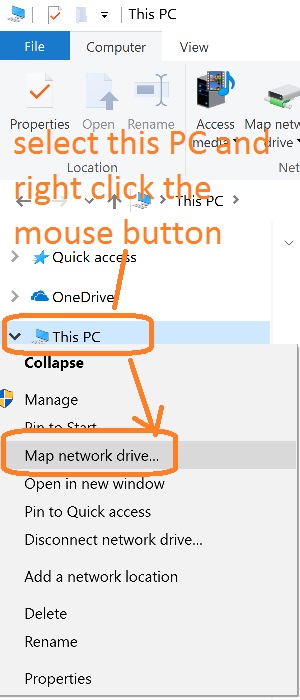
    Open file explore, select My PC (or This PC or My Computer), right click the mouse button to map network drive

    create map driver

    map network driver

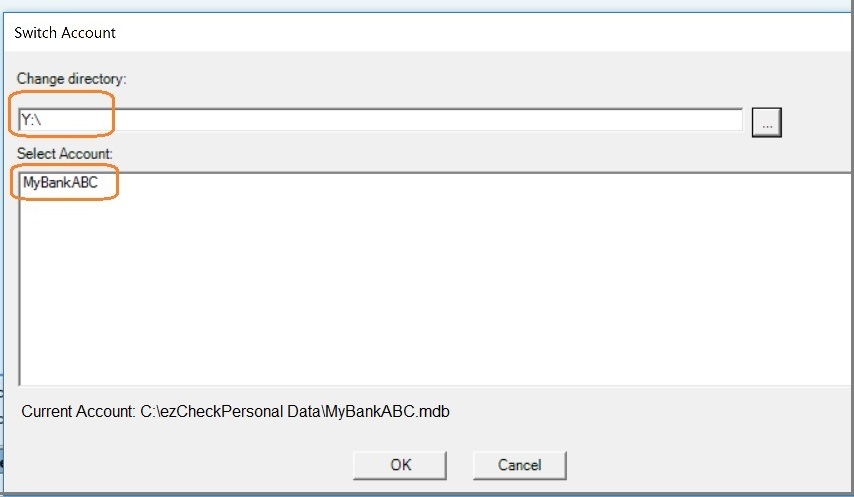
    2.2 Start ezCheckPersonal and switch the current database path to use shared file

    switch account

    Step 3: 3rd machine and other machines

    Repeat step 2.


    free check printing software

    ezCheckPersonal allows customers to design and print pocket-sized personal checks with MICR encoding and logo on blank stock in house. You can also use it to fill out preprinted blank checks also.

    If you have not installed this software, you can download and try it free with no obligation and no credit card needed.

    ezCheckPersonal is available for both Windows and Mac computers.


    Related Links:

  • How to print paychecks on balnk stock

  • How to print personal check on blank stock

  • How to Print QuickBooks Check on Blank stock


  • How to Print pre-printed check with MICR Encoding to fill in manually

  • How to Print check with logo

  • How to print check draft to collect payment online
