Form W2C W3C Software: How to Move ezW2Correction to a New Computer
ezW2Correction software makes it easy to print W2C and W3C forms. ezW2Correction software can also support multiple accounts with no extra charge. Here is guide about how to move ezW2Correction software and data to a new machine.
Option 1: If your computer is still running and you are a small business, use database backup and restore feature
Option 2: If you are a CPA or if you have multiple accounts or if your machine is crashed, move data manually
After you move the data, do not forget to select this new database file as your current database file by clicking the top menu "Company Management->Select Company"!
With ezW2Correction, you can paper print, PDF print and efile W-2C and W-3C forms for the previous 10 years. The white paper printing and data import features can save you valuable time and money.
Please feel free to test drive ezW2Correction demo version for free before purchasing with no registration needed and no obligation. You can follow the step by step online instructions to finish the installation in minutes
ezW2Correction software is compatible with Windows 11, 10, 8.1, 8, 7, 2003 Vista and other Windows computers.
#Option 1: Use ezW2Correction database back up and restore features
Step 1. Log in as the administor of the new machine. Download and install ezW2Correction.
Step 2: Backup your current database file from the old machine to the USB disk or shared folder.
- Open ezW2Corrrection application on your old machine and insert your USB disk.
- Click the top menu "Management->Backup current company", you will see the "Enter backup file name" form. You can click the triangle button behind "Save in" field to change the current path. You can modify the back up new file name as you like.
- Once you click the Save button, you will save your current database file to the new location.
Step 3. Copy the database file from the USB disk to the application folder on the new machine
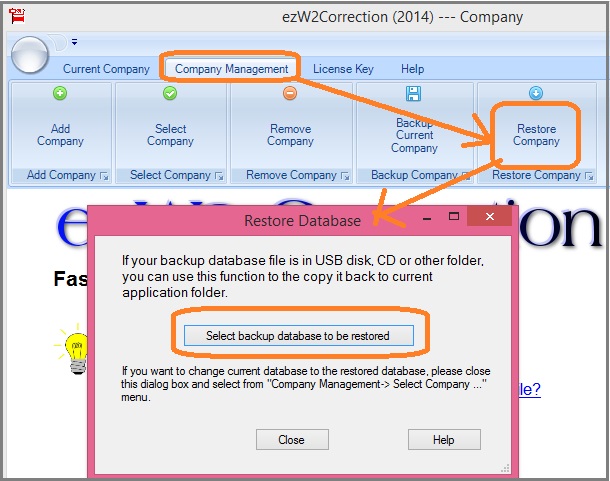
- Click the top menu "Company Management->Restore Company", then select the target database file.
Step 4. Select this new database file as your current database file by clicking the top menu "Company Management->Select Company".
#Option 2: Move data manually
Step 1. Log in as the administor of the new machine. Download and install ezW2Correction.