ezPaycheck software: how to print Forms W2, W3, 940 and 941 by entering the data manually without entering paychecks
ezPaycheck payroll software is very flexible. Customers can use the manual YTD feature to enter the summary data for employee only to print W2, W3, 941 and 940 forms.
You should consider using this feature if
you are a new ezPaycheck customer and need to print the tax forms for last yearyou are a CPAyou just want to enter the tax data manually

From $159
(Regular $189) | ezPaycheck Makes Payroll An Easy, In-House Task!(For Windows and Mac)
- Trusted by Thousands for Two decades.
- Calculate Federal & State Taxes, Print Paychecks, Print W2, W3, 941, 943 and 940.
- User-friendly, Easy-to-use
- No monthly fee.
Switching Payroll? Get ezPaycheck 2026 + 2027 Together & Save
Try it free for 30 days with no obligation. No credit card required.
|
Step 1: Download ezPaycheck payroll software and add employees there
You can follow the
Quick Start Guide to set up ezPaycheck and add employees one by one.
Or you can
import employees data quickly from spreadsheet.
Step 2: Print Tax Form W2 and W3 by entering data manually
2.1. Click the top menu "Company" then "duplicate company" to duplicate current company. You can use a new name as "Company ABC Yearly"
2.2. Click the top menu "Company" then "select company" to switch current database to "Company ABC Yearly".
2.3. (Optional): View check list and delete all checks for that year if you have entered any checks.
You can select multiple checks and click the DELETE button to delete multiple checks by one click.
2.4. click left menu "Employees" then "List Employee" to view employee list.
Select one employee from list, and manually enter the YTD data for the whole year. For example: If you need to print report for Year 20XX, the pay date should be 12/31/20XX, the Pay start date should 1/1/201X, and pay ending date should be 12/31/20XX.
Then repeat this process to enter the YTD for other employees.

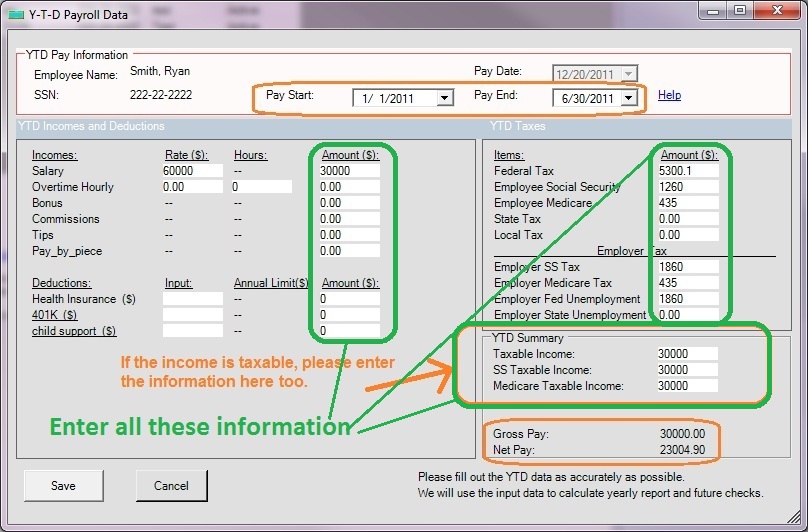
2.5. Click the ezPaycheck left menu "Report and Forms" then "Forms" to print W2 and W3 forms.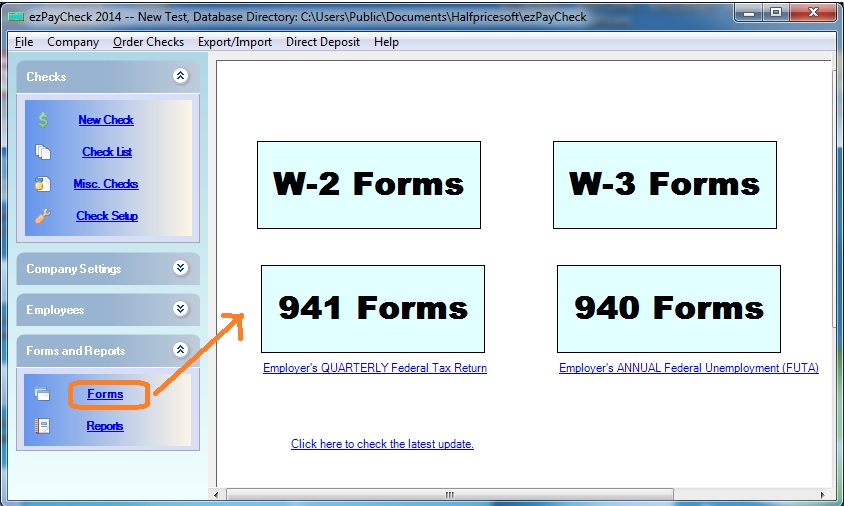
Step 3: Print Form 941 quarterly report by entering data manually
3.1.Click the top menu "Company" then "duplicate company" to duplicate current company. You can use a new name as "Company ABC 941"
3.2. Click the top menu "Company" then "select company" to switch current database to "Company ABC 941".
3.3. click left menu "Employees" then "List Employee" to view employee list.
3.4 Select ONE employee from list, and manually enter the summary YTD data for the entire company for that quarter only. For example: If you need to print 941 for 4th quarter, the pay date should be 12/31/20XX, the Pay start date should 10/1/20xx, and pay ending date should be 12/31/20xx. 3.4. Click the ezPaycheck left menu "Report and Forms" then "Forms" to print Form 941.
Step 4: Print Tax Form 940 by entering data manually
If you have already entered the YTD for each employee in step 2, you can print Form 940 directly.
If you just need to print 940 form only, please follow the steps below.
4.1. Click the top menu "Company" then "duplicate company" to duplicate current company. You can use a new name as "Company ABC 940"
2.2. Click the top menu "Company" then "select company" to switch current database to "Company ABC 940".
2.3. (Optional): View check list and delete all checks for that year if you have entered any checks.
You can select multiple checks and click the DELETE button to delete multiple checks by one click.
2.4. click left menu "Employees" then "List Employee" to view employee list.
2.5 Select ONE Employee from list, and manually enter the YTD data for the entire company for the whole year. For example: If you need to print report for Year 20XX, the pay date should be 12/31/20XX, the Pay start date should 1/1/201X, and pay ending date should be 12/31/20XX. 2.5. Click the ezPaycheck left menu "Report and Forms" then "Forms" to print 940 forms now.
Related Links:
ezPaycheck Quick Start GuideHow a add a new company accountHow to handle both employees and contractorsHow to handle restaurant tipsHow to add a custom deduction and withhold it from each paycheck automaticallyHow to handle local taxesHow to handle State Disability Insurance (SDI)How to print paycheck in different formats: check-on-top, check-in-middle, check-at-bottom or 3-per-pageHow to print paycheck on blank stockHow to print paycheck on pre-printed checksHow to print paycheck with company logoHow to adjust check printing positionSample PaychecksDetermine a Company's Name for e-Filing
Download Now> Buy Now
